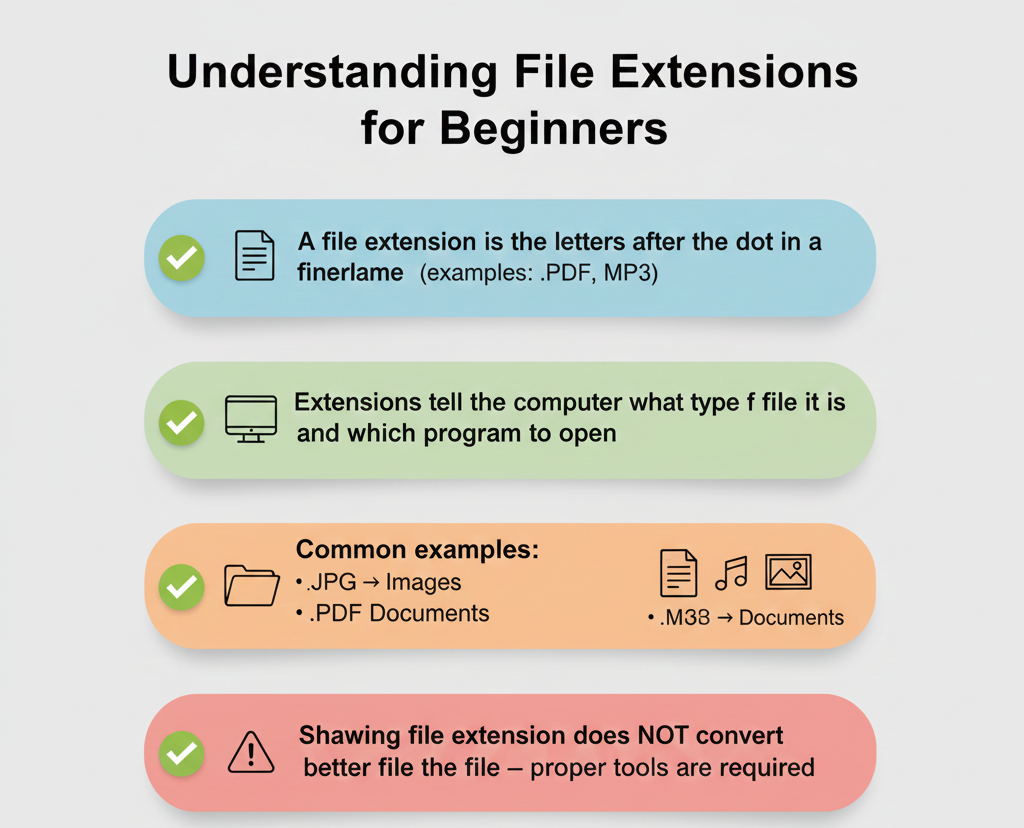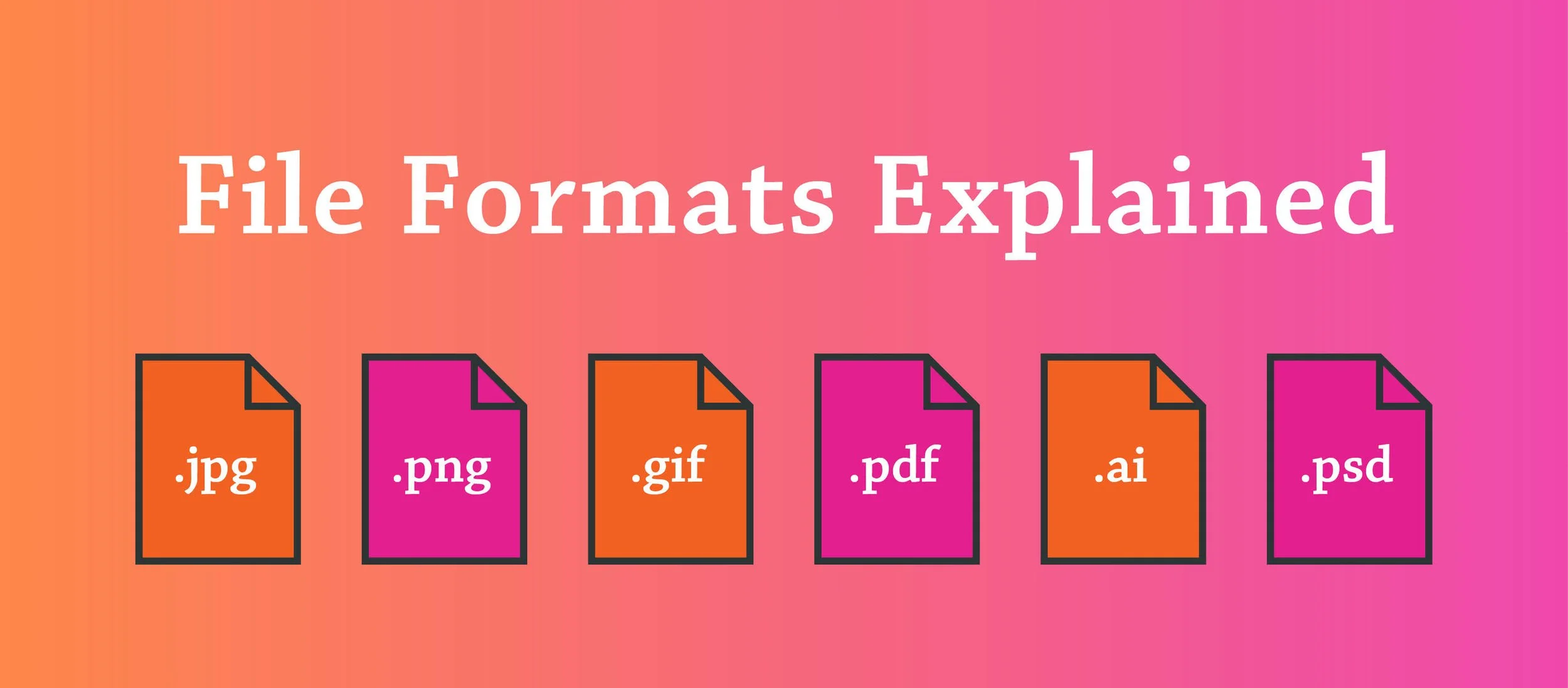
A file extension is the part of a filename that comes after the last dot (.). It tells your computer what type of file it is and which program should open it.
For example, in the filename "photo.jpg", the extension is .jpg — this tells your computer it's an image file and should be opened with a photo viewer.
Think of it like a label on a box. Just by looking at the label, you know what's inside without opening it!
File extensions are important because:
- They help your computer choose the right program — When you double-click a file, your computer looks at the extension to decide which app to use
- They organize your files — You can easily search for all .mp3 files (music) or .pdf files (documents)
- They prevent errors — Opening a file with the wrong program can cause problems or show gibberish
- They provide security hints — Some extensions like .exe can run programs, so you should be careful with unknown files
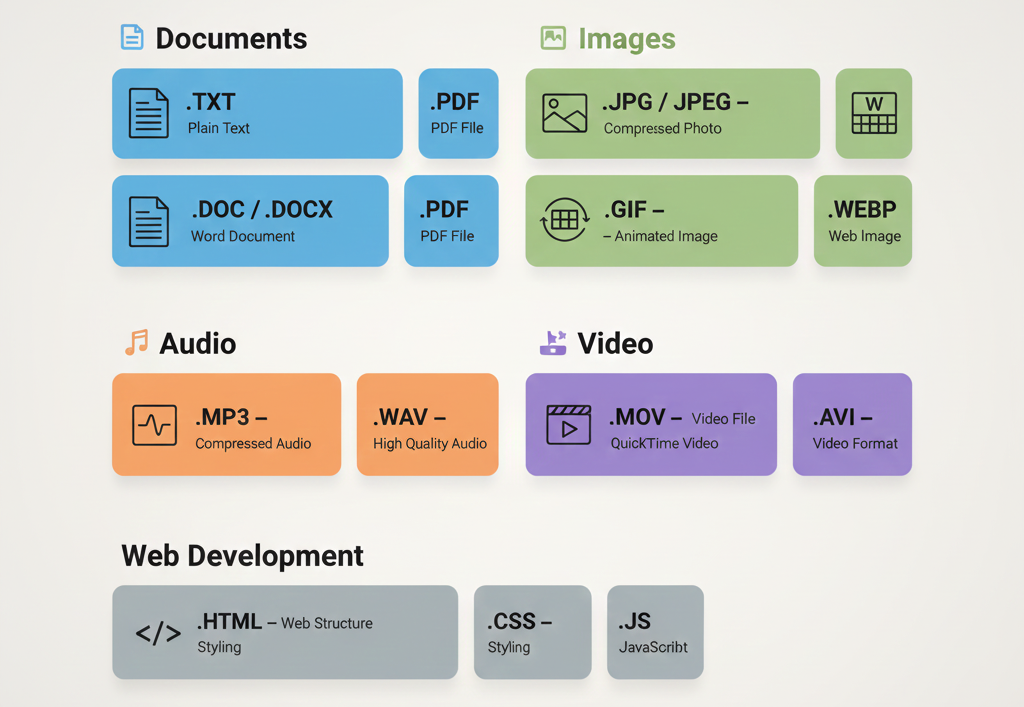
Here are the most common file extensions grouped by type:
📄 Documents:
- .txt — Plain text file
- .doc / .docx — Microsoft Word document
- .pdf — Portable Document Format (great for sharing)
- .xls / .xlsx — Microsoft Excel spreadsheet
🖼️ Images:
- .jpg / .jpeg — Compressed photo format (most common)
- .png — Image with transparent background support
- .gif — Animated images or simple graphics
- .webp — Modern web image format (smaller size)
🎵 Audio:
- .mp3 — Compressed music file
- .wav — High-quality uncompressed audio
- .m4a — Apple audio format
🎬 Video:
- .mp4 — Most common video format
- .mov — Apple QuickTime video
- .avi — Older video format
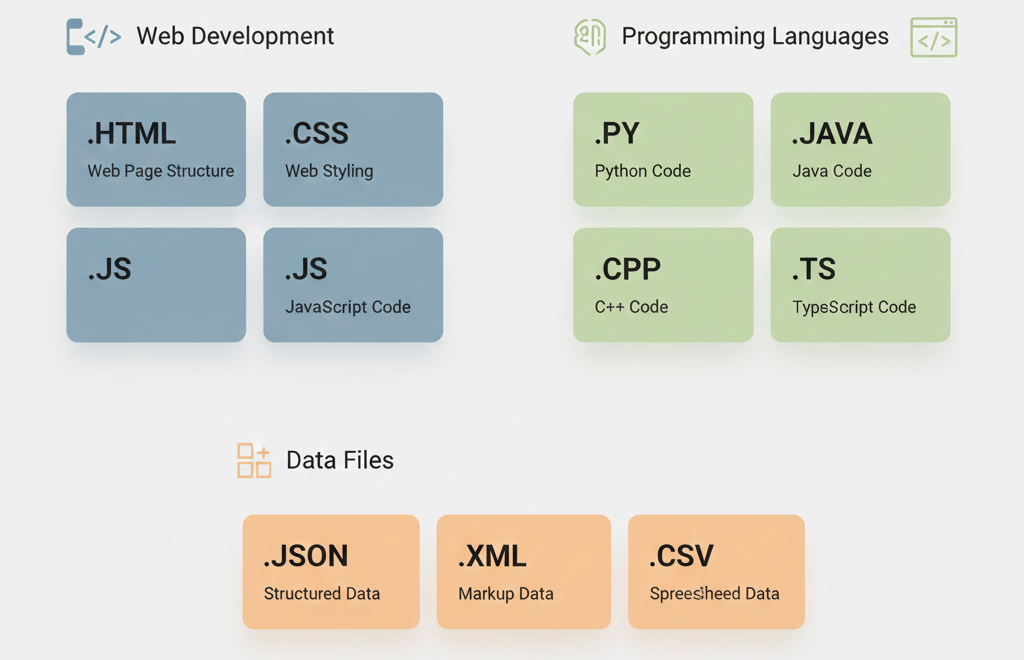
If you're learning to code, you'll encounter these extensions often:
Web Development:
- .html — Web page structure
- .css — Web page styling
- .js — JavaScript code
Programming Languages:
- .py — Python code
- .java — Java code
- .cpp — C++ code
- .ts — TypeScript code
Data Files:
- .json — Data in JavaScript Object Notation
- .xml — Structured data format
- .csv — Comma-separated values (spreadsheet data)
By default, Windows and Mac hide file extensions. Here's how to show them:
On Windows 11/10:
- Open File Explorer
- Click "View" in the top menu
- Check "File name extensions"
On Mac:
- Open Finder
- Click "Finder" → "Preferences"
- Go to "Advanced" tab
- Check "Show all filename extensions"
Showing extensions helps you identify files correctly and avoid accidentally opening dangerous files!
Yes, you can rename a file and change its extension, but this doesn't convert the file — it just changes the label.
For example, renaming "song.mp3" to "song.jpg" won't turn your music into a picture. Your computer will try to open it as an image and fail!
To actually convert a file, you need to use:
- Online converters — Websites that change file formats
- Software — Programs like VLC for video, or Photoshop for images
- Built-in tools — "Save As" option in most programs lets you choose a different format
Let's recap what we learned:
✅ A file extension is the letters after the dot in a filename (like .jpg, .pdf, .mp3)
✅ Extensions tell your computer what type of file it is and which program to use
✅ Common extensions include .jpg for images, .mp3 for music, .pdf for documents
✅ You should show file extensions on your computer for better file management
✅ Changing an extension doesn't convert the file — you need proper conversion tools
Now you understand file extensions! This knowledge will help you work with files more confidently on any computer.